

Mindmap
Visually systemize workflows, project structures, or key takeaways from your meetings.
1. Guide on How to Create and Use:
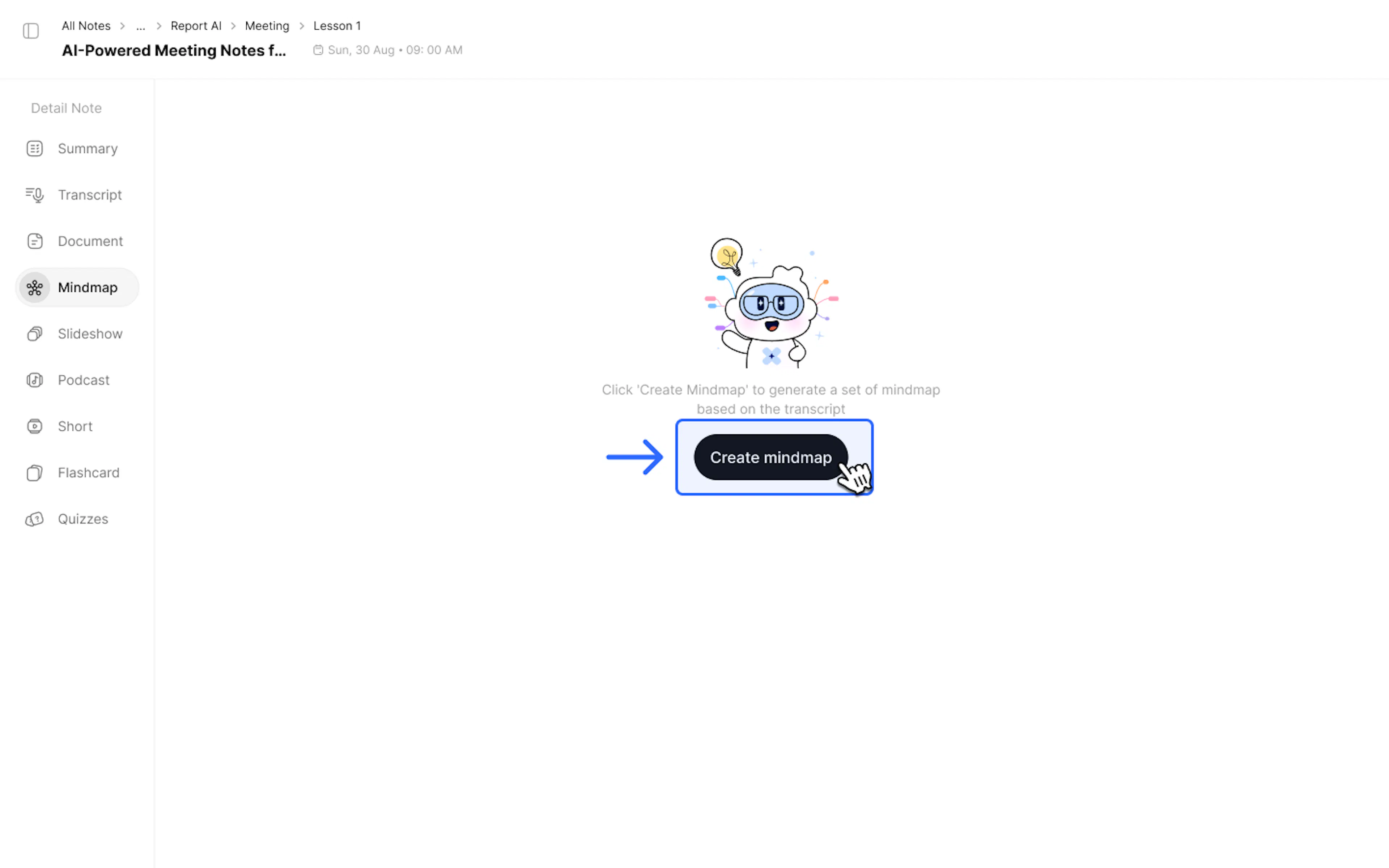
- Select the Mindmap tab on the left sidebar within your note.
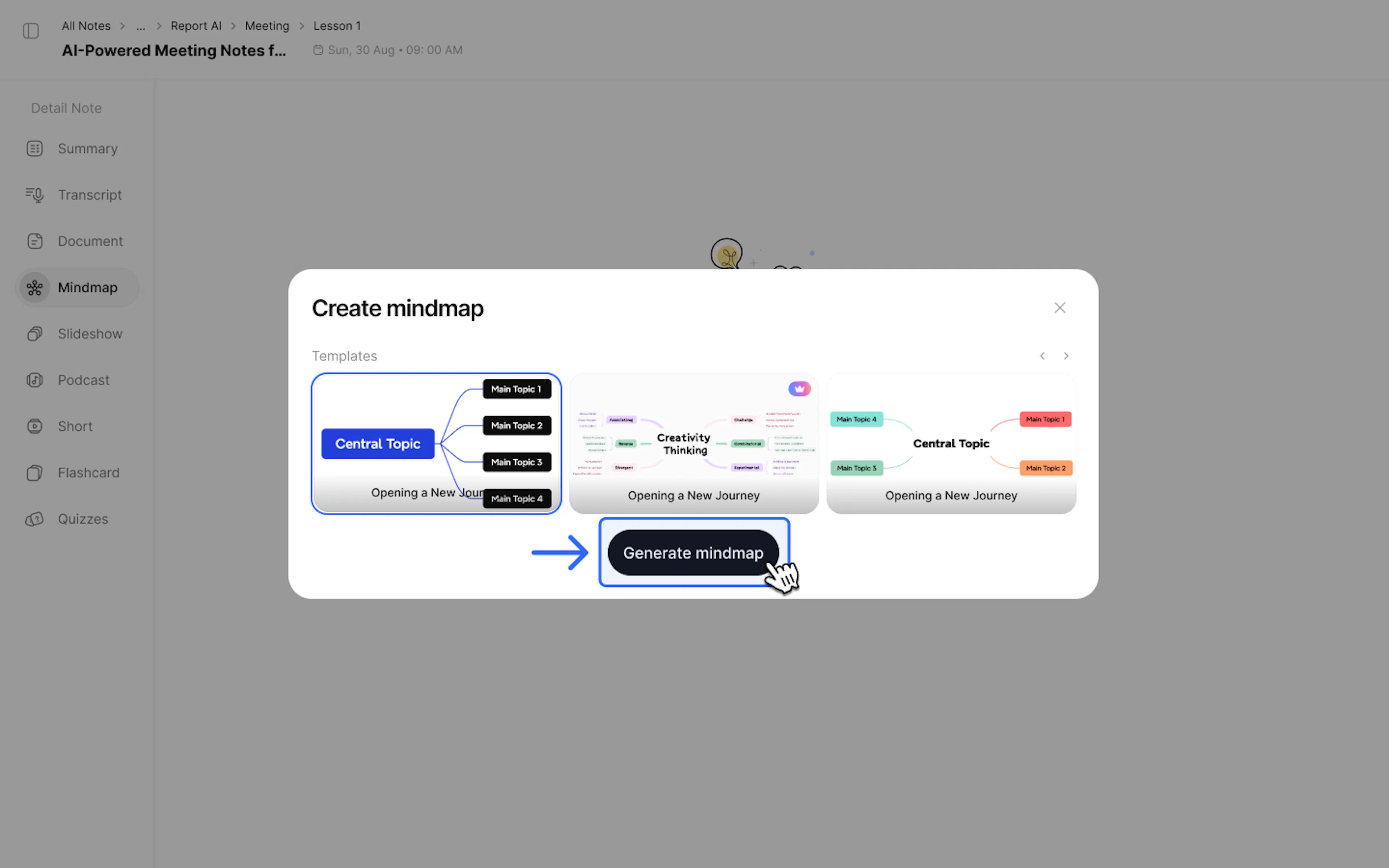
- Click Create Mindmap and choose from the available Templates.
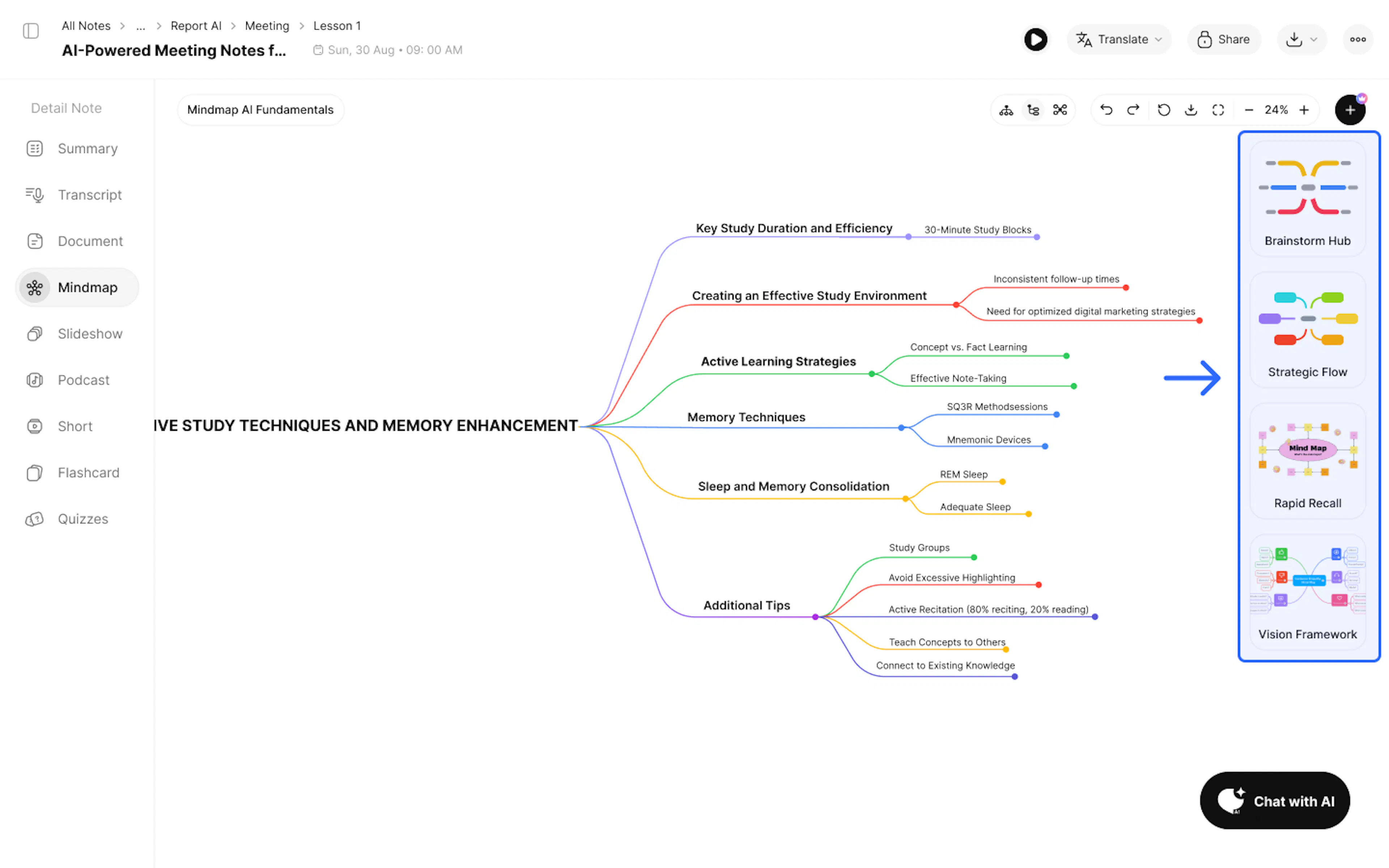
- Click Generate mindmap the AI will automatically analyze the text and draw a tree diagram.
After creating the mindmap, you can freely switch between templates based on your preference on the right side of the screen.
2. Use Cases
- Sales Manager: Systemize customer feedback.
- Project Manager: By looking at the diagram, the Project Manager (PM) can instantly see the workflow.
- Product Owner: Manage features & create product roadmaps.
- Operation Manager: Outline new operating procedures.
- Marketing Manager: Campaign planning.
3. FAQ: Frequently Asked Questions
Q: What if the data in the note is too long?
The AI will automatically filter and select the most crucial points to include in the Mindmap or Slideshow.
Q: Can I export this data?
Yes, use the Export / Download feature.
Q: What types of content can I use to create a mindmap?
Any type of content on NoteX AI! From raw text and long articles to meeting transcriptions (Live transcription)—all can be transformed into a visual mindmap in just a few seconds.
4. Contact Support
If you need any further assistance, please do not hesitate to contact us via:
- Product support & bug reports: support@notexapp.com
- Partnerships & general inquiries: hello@notexapp.com
Was this page helpful?