

Podcast / Short
Convert text into audio conversations or short videos to listen to or review while driving or multitasking.
1. How to use:
- Select the Podcast / Short tab from the menu on the left sidebar of your note.
- Click Create Podcast / Short.
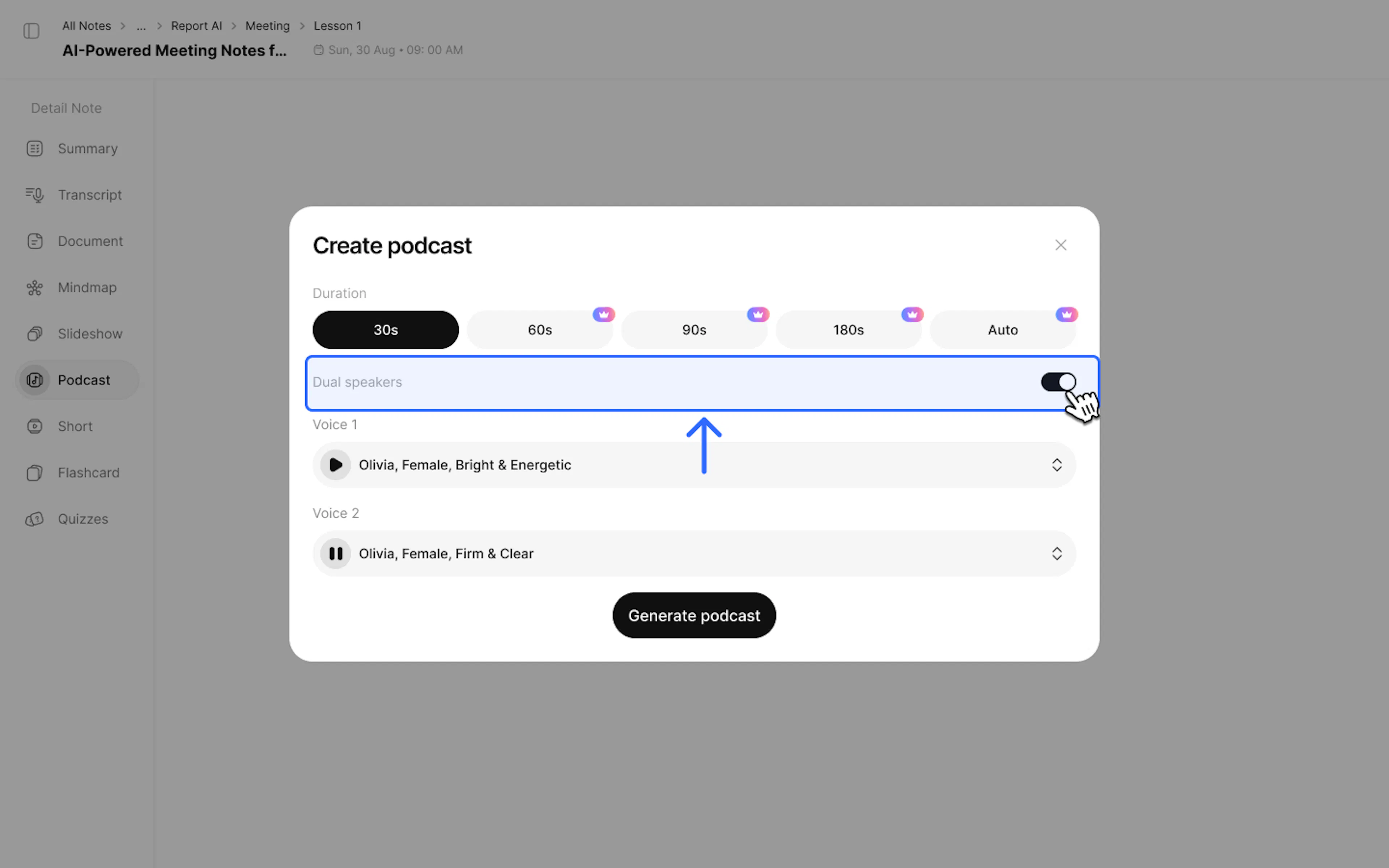
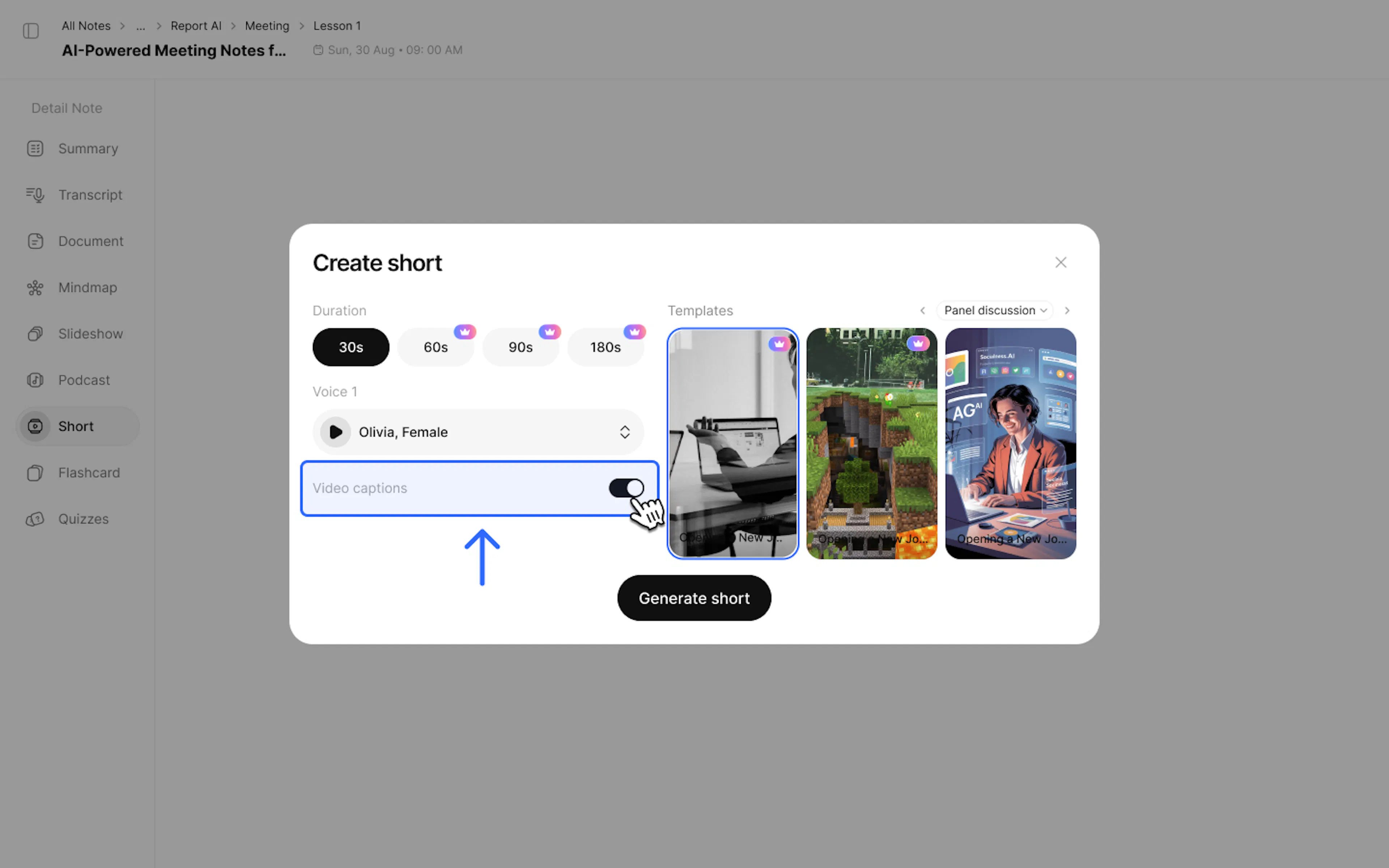
- Duration: Choose the duration (30s, 60s, 90s, 180s).
- Voice: Select a suitable voice (Olivia, Puck,...) and press the Play button to preview.
- For Podcast - Dual Speakers: Toggle the switch on the right if you want to create a dialogue between two people (making the content more engaging).
- For Short:
- Template: Choose the video background.
- Video captions: Toggle the switch on the right if you want text captions in the video.
- Click Generate Podcast / Short to create.
2. Create and manage Podcasts / Shorts:
- Click the + button in the top right corner of the Podcast / Short interface to create a new version.
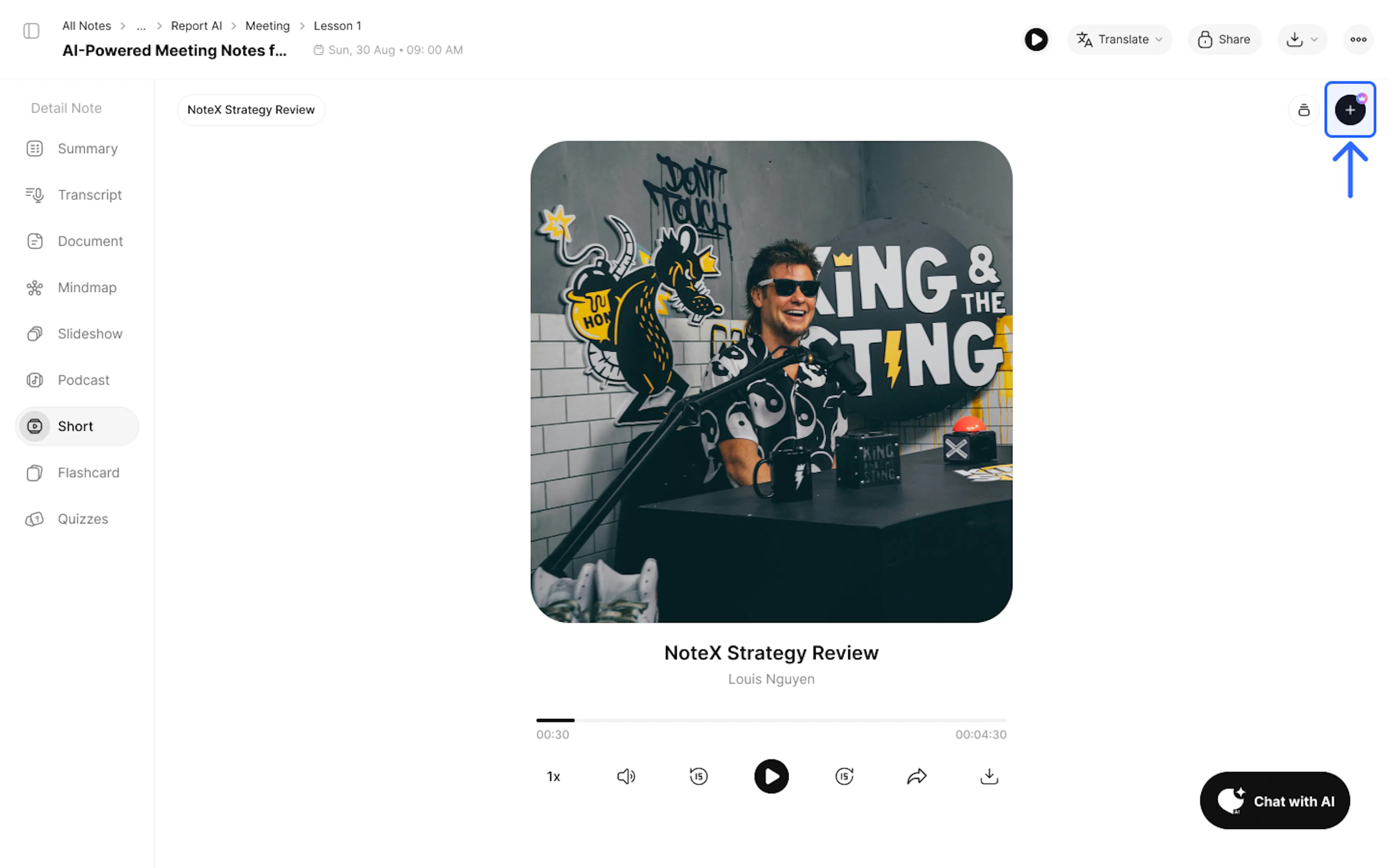
Note: Each user gets 1 creation turn; Pro users get 3 turns.
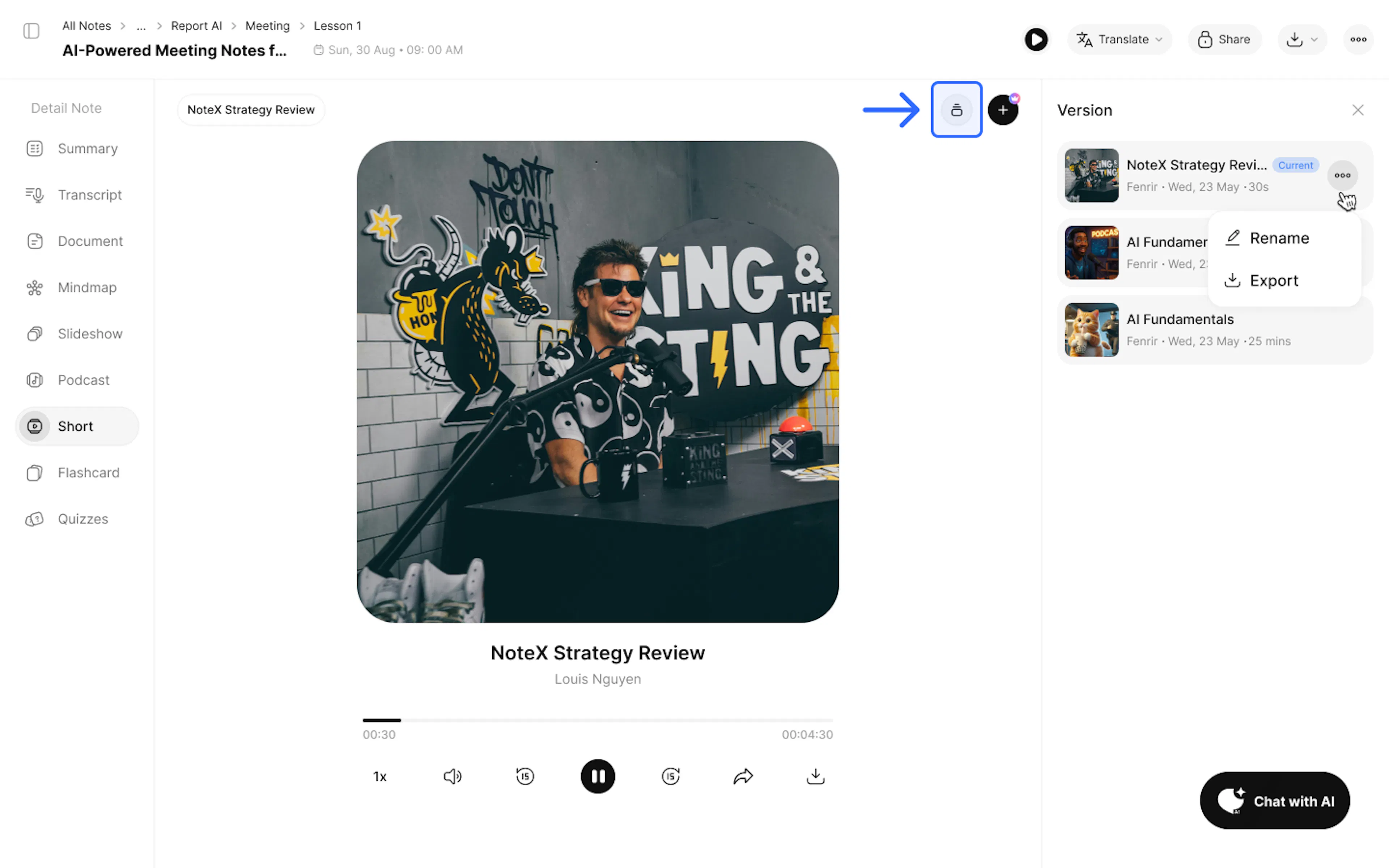
- Select the Version button to review and edit (rename, save) previously created versions.
3. Use Case
- Update market news or important announcements from leadership in the form of internal radio or videos.
4. FAQ: Frequently Asked Questions
Q: Will the AI-converted Podcast sound "robotic" or stiff?
No, NoteX AI uses the most advanced Text-to-Speech (TTS) technology, creating conversations with natural intonation, proper pauses, and pitch variations like a real person. You can even choose the "2-speaker dialogue" (Co-host) format for a more dynamic listening experience.
Q: Can I download the Podcast audio or the Short video file?
Yes, the system allows you to download high-quality audio files in MP3 format (Podcast) and videos in MP4 format (Short) for archiving, offline listening, or sharing on any platform.
Q: What is special about the Shorts (Short Video) feature?
It allows you to create videos based on note content but with backgrounds from popular games (like GTA, Subway Surfers) to increase entertainment value when sharing on social media.
5. Contact Support
If you need any further assistance, please do not hesitate to contact us via:
- Product support & bug reports: support@notexapp.com
- Partnerships & general inquiries: hello@notexapp.com