

AI Meeting Bot
AI Meeting Bot is a virtual assistant that automatically joins online meetings (Google Meet, Zoom, Teams, Webex) to record, transcribe, and summarize content using AI.
1. What is AI Meeting Bot used for?
Use-cases:
- Executive Management: Keep track of critical decisions via summaries without having to attend every single meeting.
- Sales Teams: Focus entirely on listening to clients instead of talking and taking manual notes simultaneously.
- Operations: Accurately archive action items (Tasks) and deadlines discussed during the meeting.
2. How to use the AI Meeting Bot feature
You can use the Bot in two ways: Manually or Automatically.
Method 1: Live Meeting - Manual Bot Creation (Instant Use)
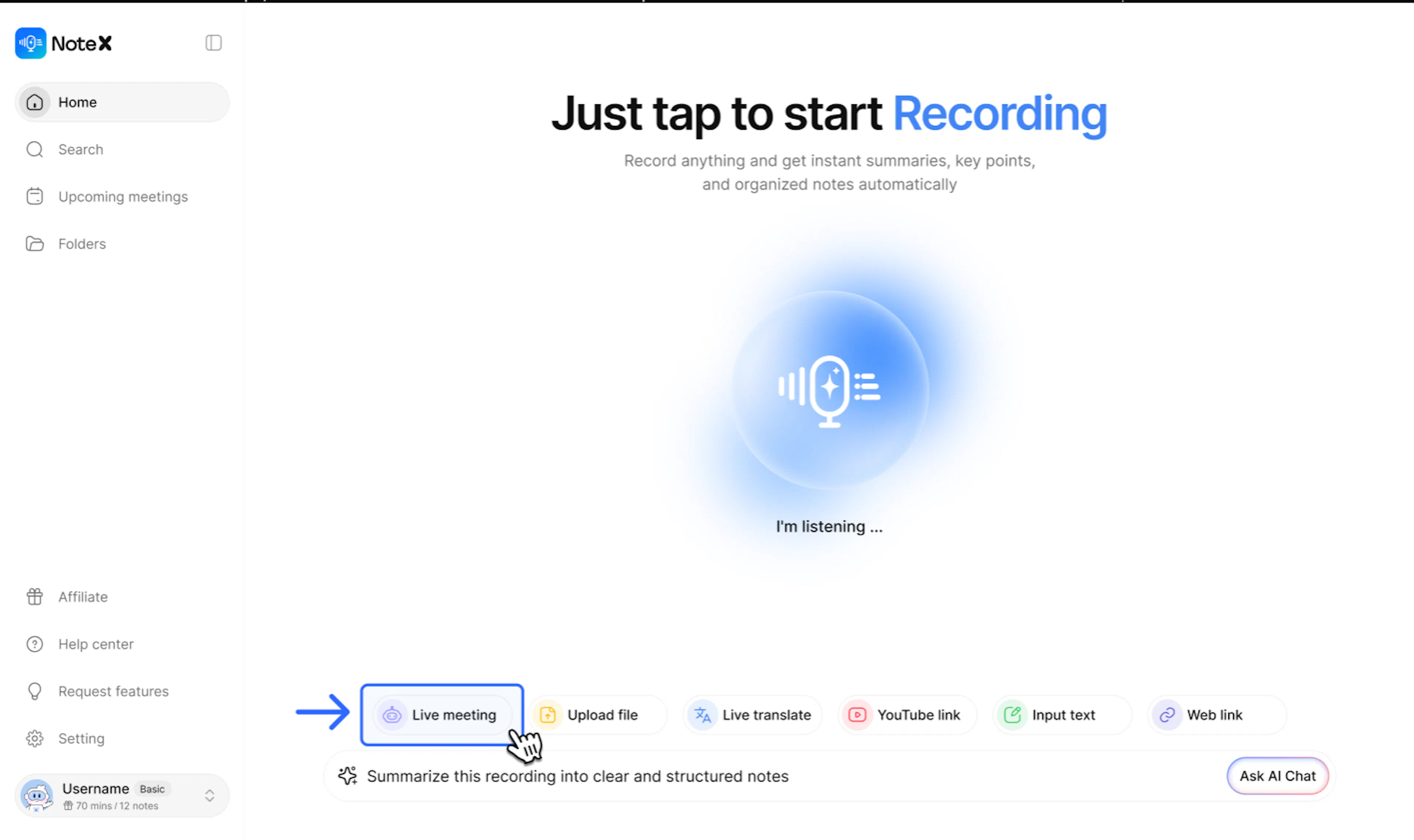
- On the Home screen, select Live Meeting.
- Paste the meeting link (Google Meet, Zoom...) into the box "Paste the meeting invite link here".
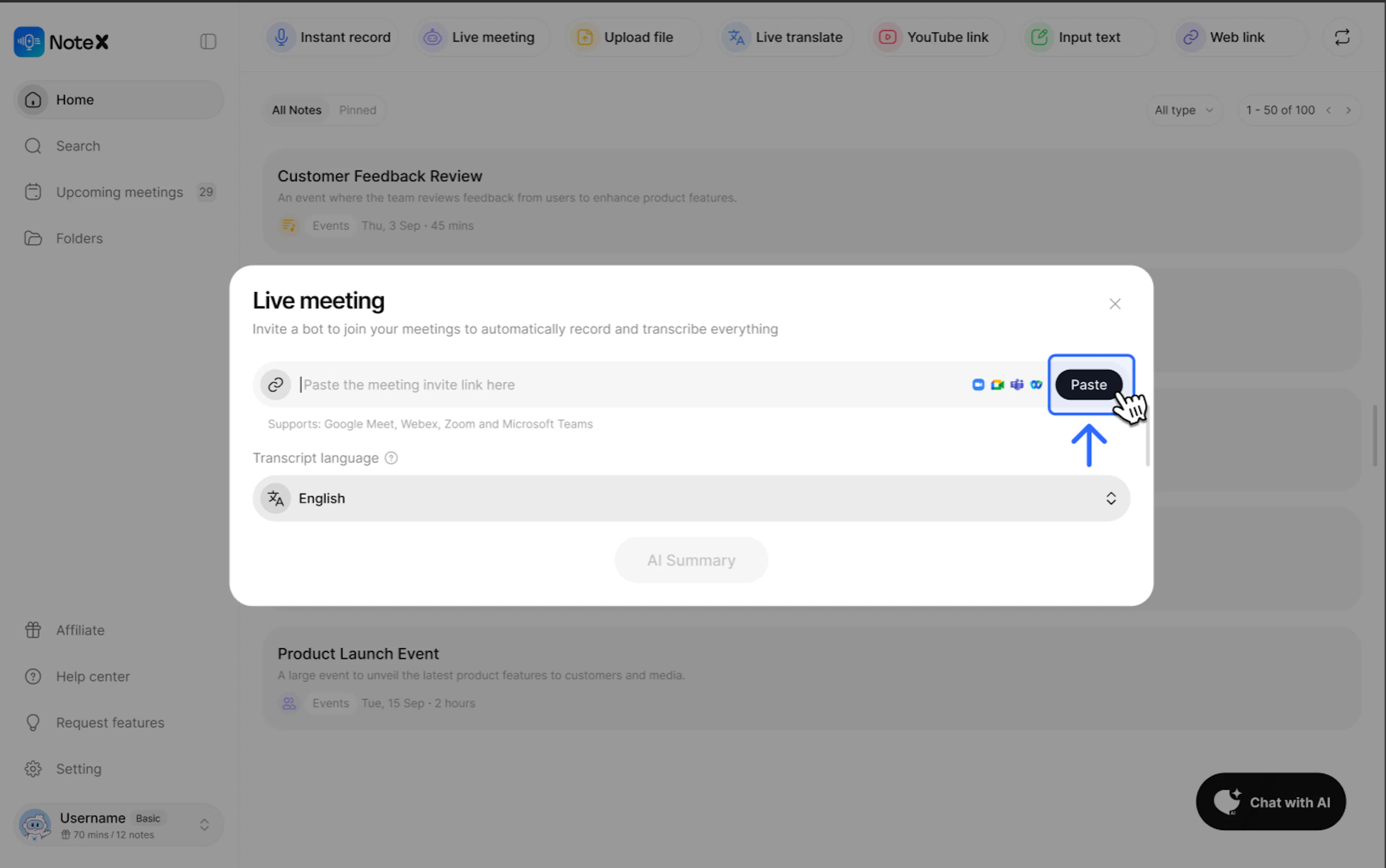
- Select the meeting language in the Transcript Language section (e.g., Vietnamese).
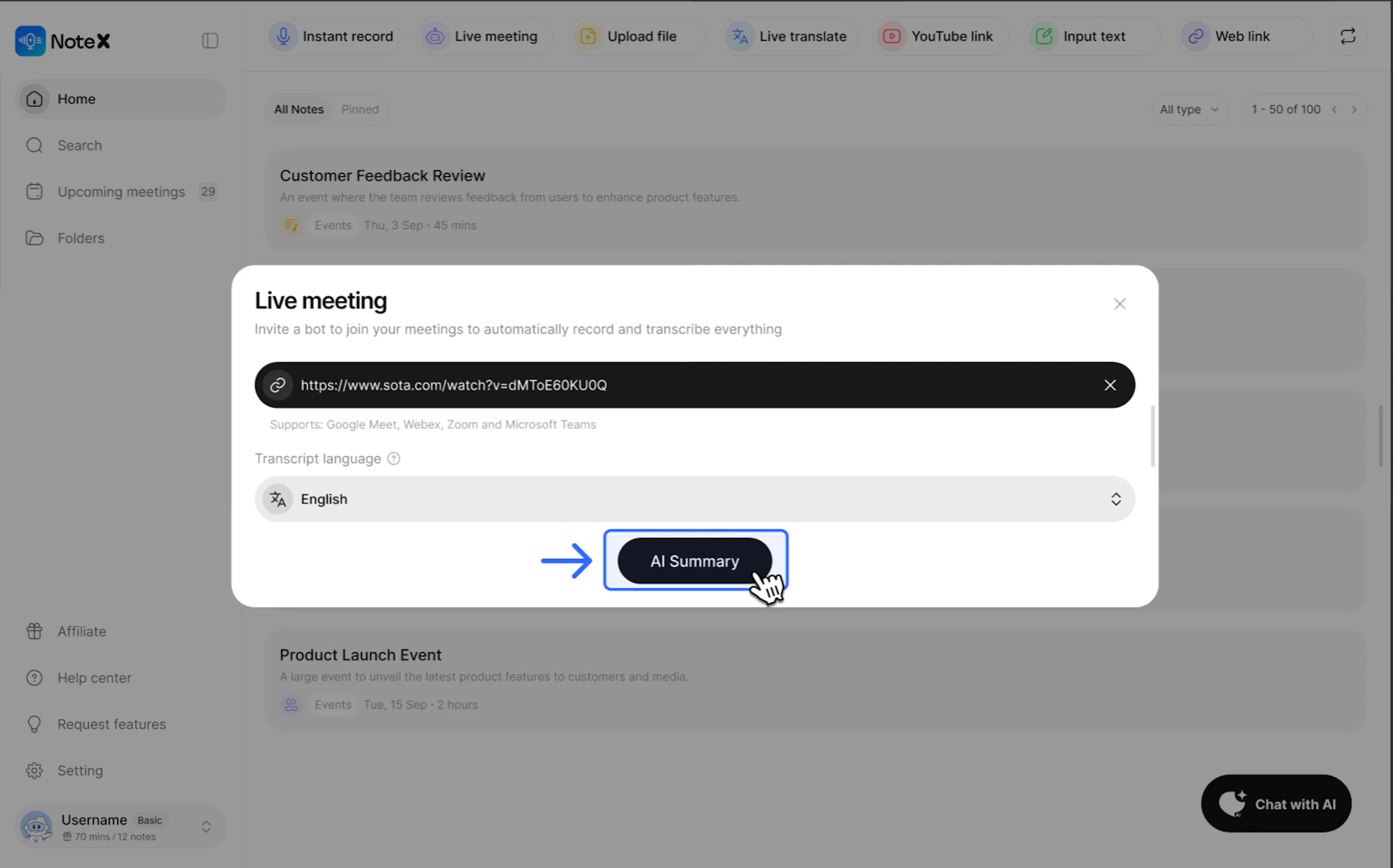
- Click AI Summary the Bot will automatically request to join the meeting room to start note-taking.
Method 2: Auto-join Bot - Automatic Bot Setup (For busy schedules)
To have the Bot automatically join scheduled meetings on your calendar:
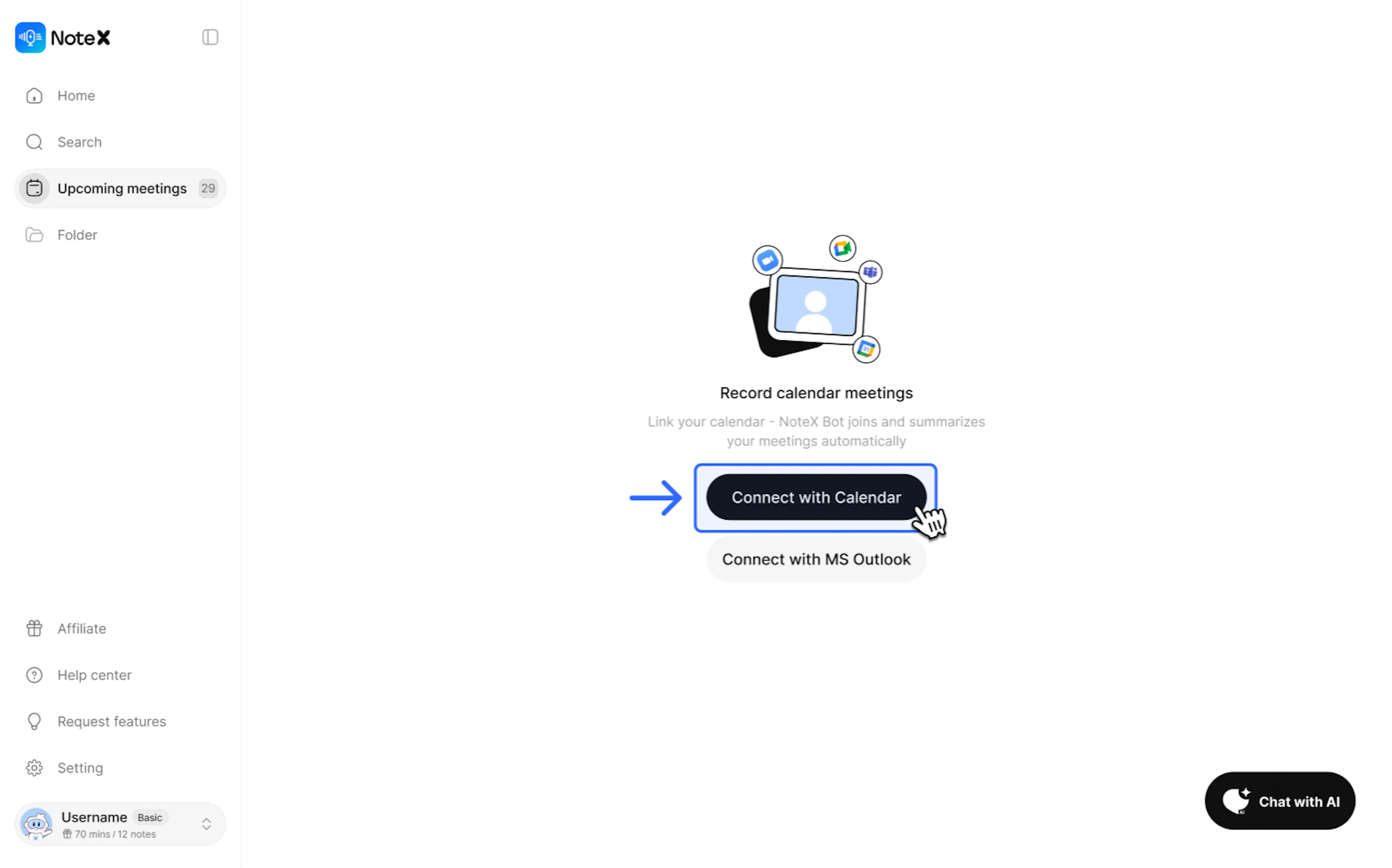
- Connect Calendar: Go to the left menu Upcoming Meetings - click Connect with Calendar to sync with your Google Calendar.
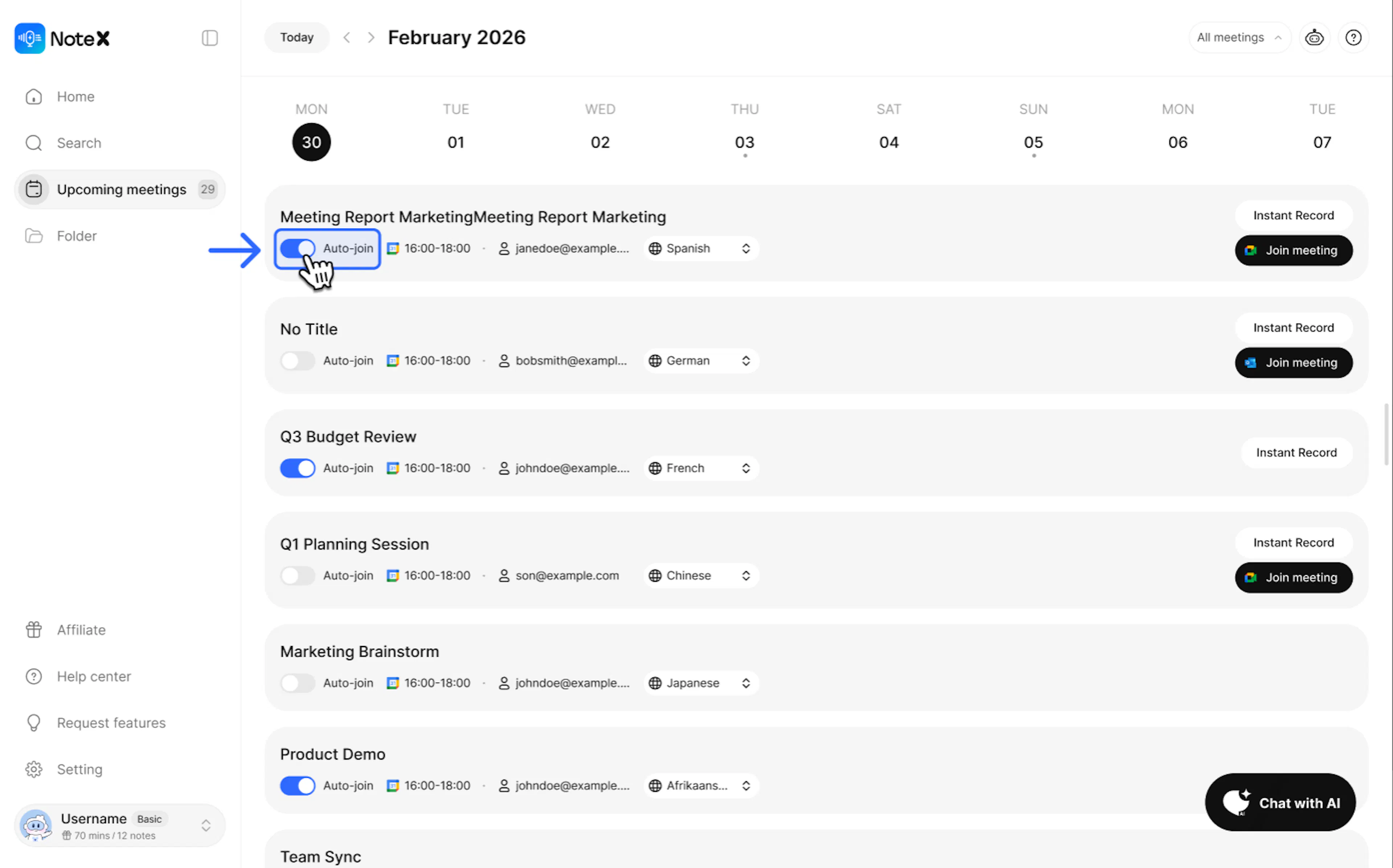
- Customize per meeting: In the Upcoming Meetings list, you can toggle the Auto-join switch for specific meetings you want the Bot to join.
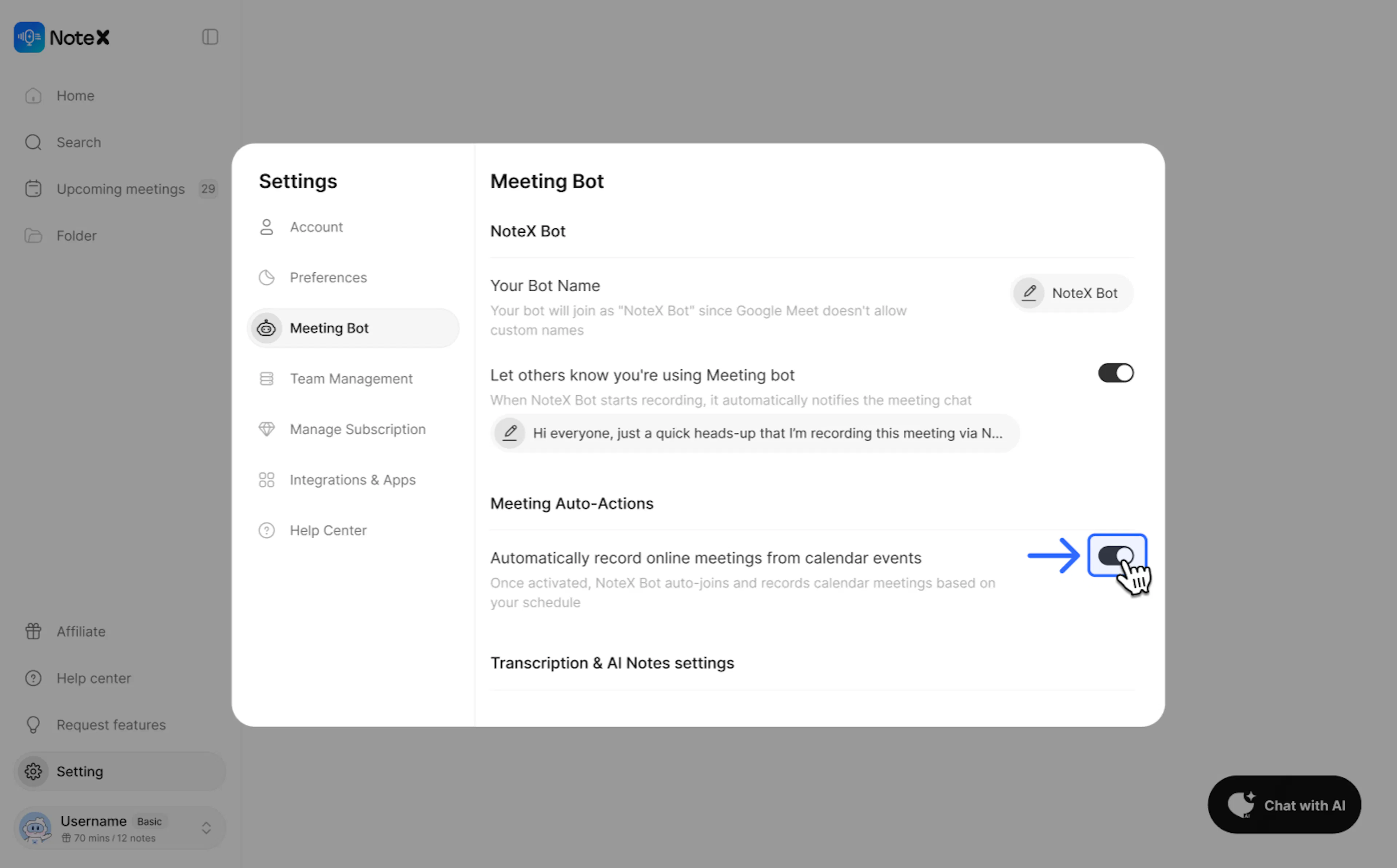
- Enable automatic join for all: Go to Settings > Meeting Bot > Turn on "Automatically record online meetings from calendar events".
3. FAQ - Frequently Asked Questions
Q: What name will the Bot display in the meeting?
A: By default, the Bot will be named "NoteX Bot" or "[Your Name]'s NoteX AI Bot". You can change this name in Settings > Meeting Bot.
Q: Do I need to keep the NoteX tab open during the entire meeting?
A: No. Once the Bot has entered the room, it will run independently. You can close your browser, and the results will appear in the All Notes section right after the meeting ends.
4. Contact Support
If you need any further assistance, please do not hesitate to contact us via:
- Product support & bug reports: support@notexapp.com
- Partnerships & general inquiries: hello@notexapp.com
Was this page helpful?