

Slideshow (Presentation)
Quickly create a professional presentation without manual design.
1. Step-by-Step Guide:
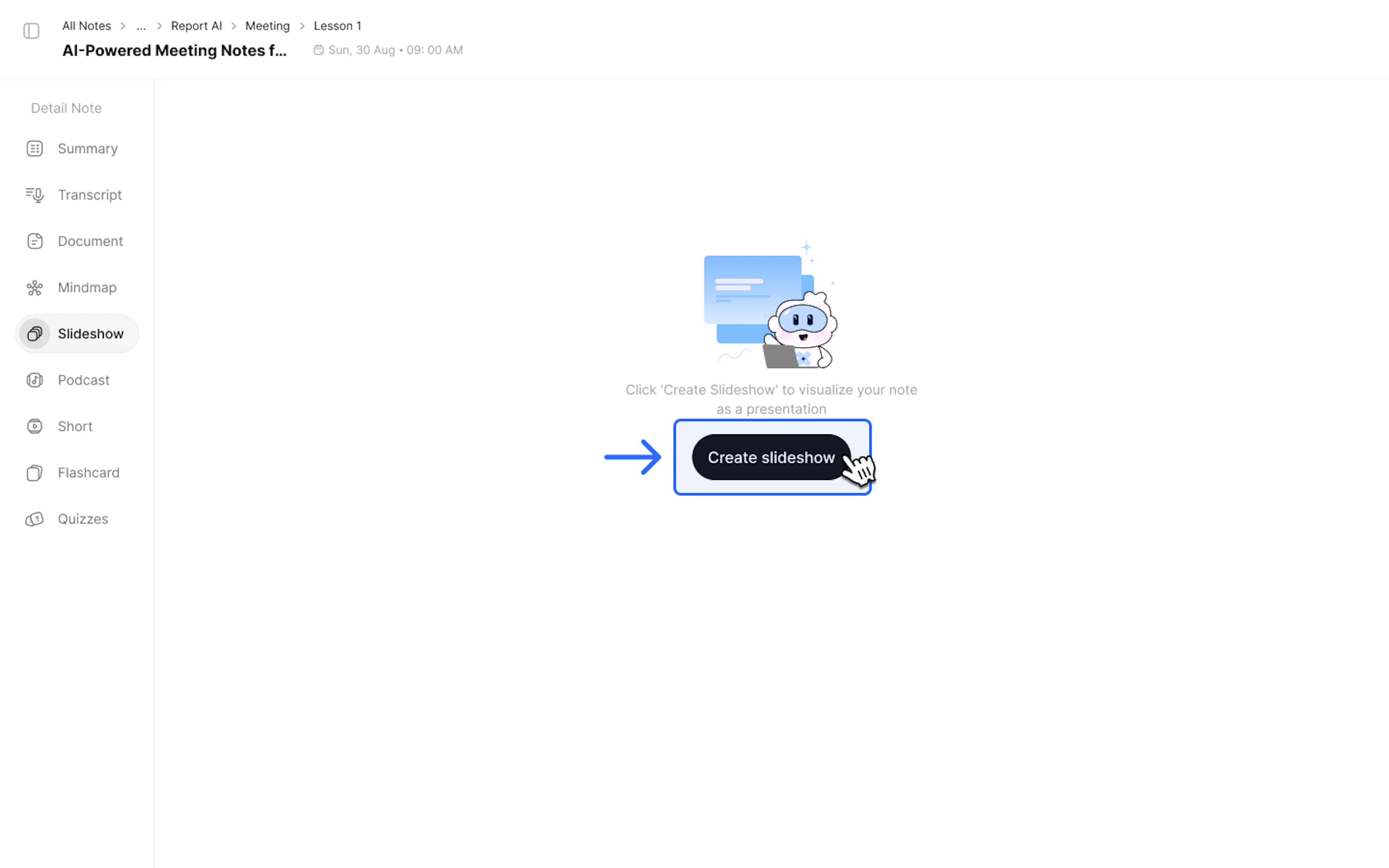
- Select the Slideshow tab on the left toolbar of your note.
- Click Create Slideshow
- In the Slide Range section, select the number of pages (Auto or within a range of 10-12 slides), and choose any Template.
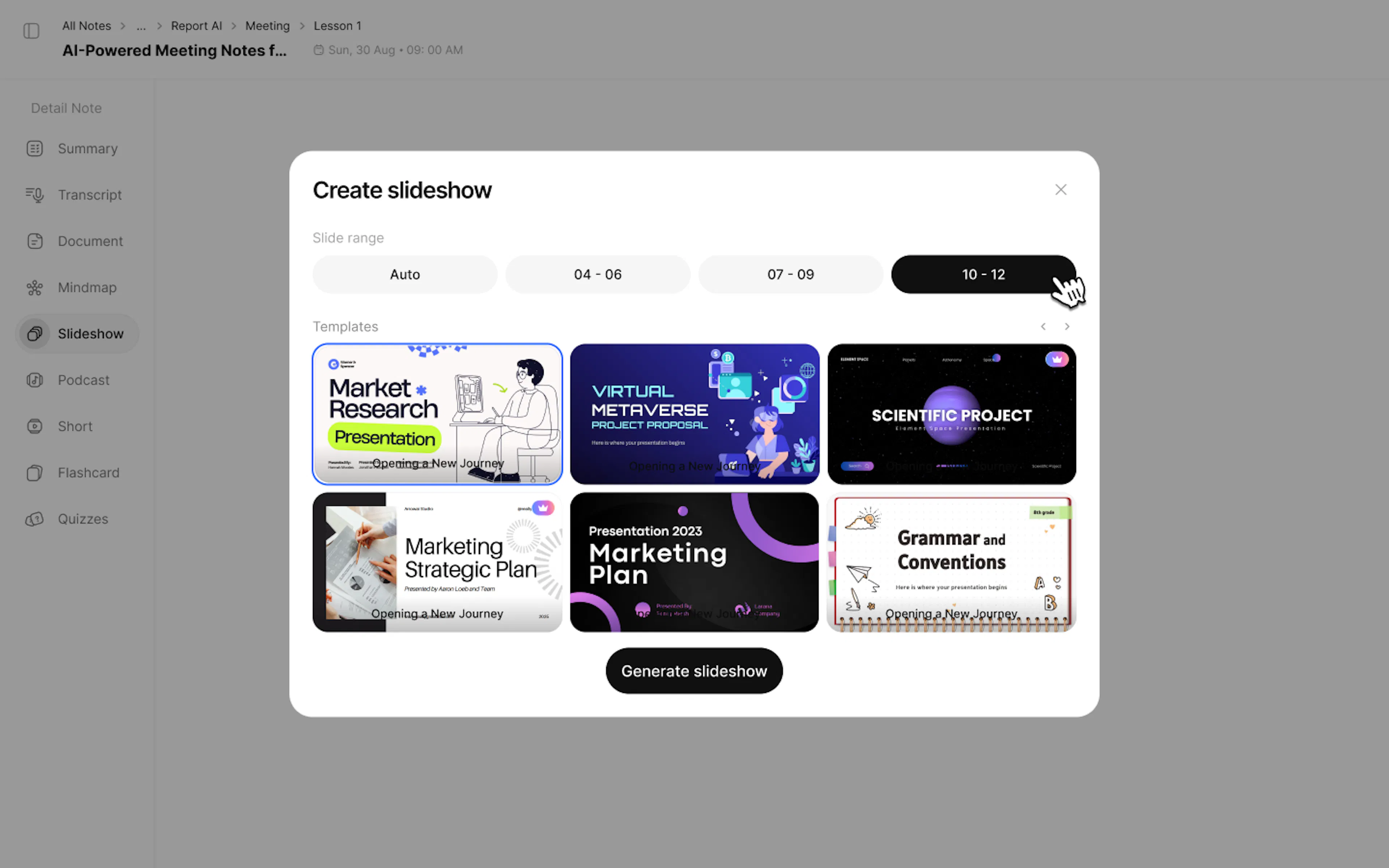
- After choosing your template and slide range, click Generate slideshow.
2. Use Cases
- Quick weekly business performance report
- Summarize training content for employees.
3. FAQ: Frequently Asked Questions
Q: Can I export slides to edit on PowerPoint or Google Slides?
Absolutely. NoteX AI supports exporting files in PPTX format (preserving text formatting so you can easily continue editing on PowerPoint) or exporting as a PDF for quick sharing.
Q: What if the data in the note is too long?
The AI will automatically filter and select the most crucial points to include in the Mindmap or Slideshow.
Q: Can I export this data?
Yes, use the Export / Download feature.
4. Contact Support
If you need any further assistance, please do not hesitate to contact us via:
- Product support & bug reports: support@notexapp.com
- Partnerships & general inquiries: hello@notexapp.com
Was this page helpful?