

Folder Management (Folders & Sub-folders)
This feature allows users to add one or multiple existing notes to a folder, making it easier to organize, manage, and access content by topic, project, or purpose. Users can search, filter by content type, and select multiple notes before adding them to a folder.
1. Guide to Managing Folders (Folders & Sub-folders)
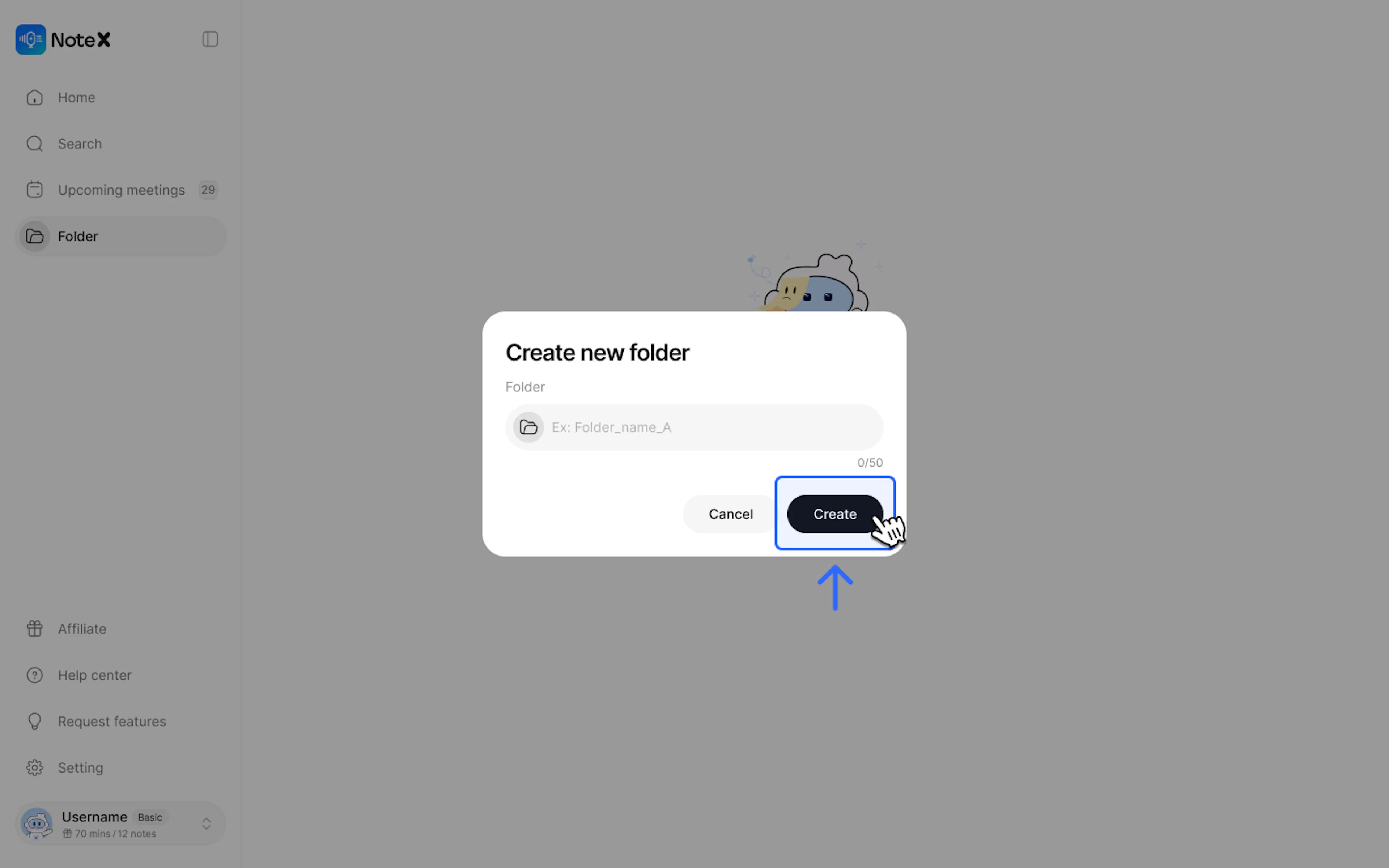
- Create a new folder: On the left menu of the Home screen, select Folder. Click Create new folder, name your folder, and press Create.
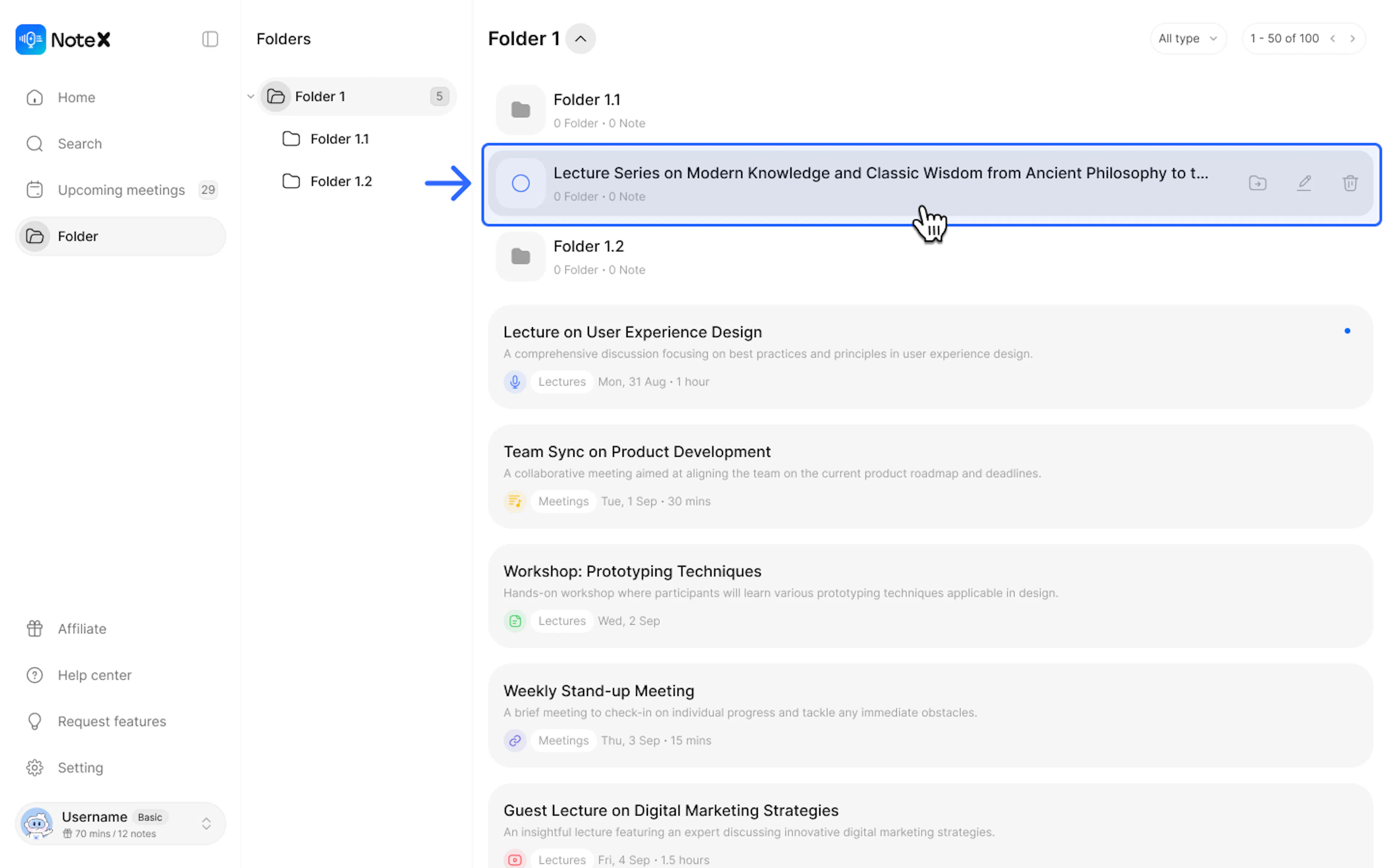
- Edit/Delete: Hover over the folder you want to manage, select the Pencil icon to rename or the Trash bin icon to delete. You can also tick the checkboxes to select multiple notes and delete them simultaneously.
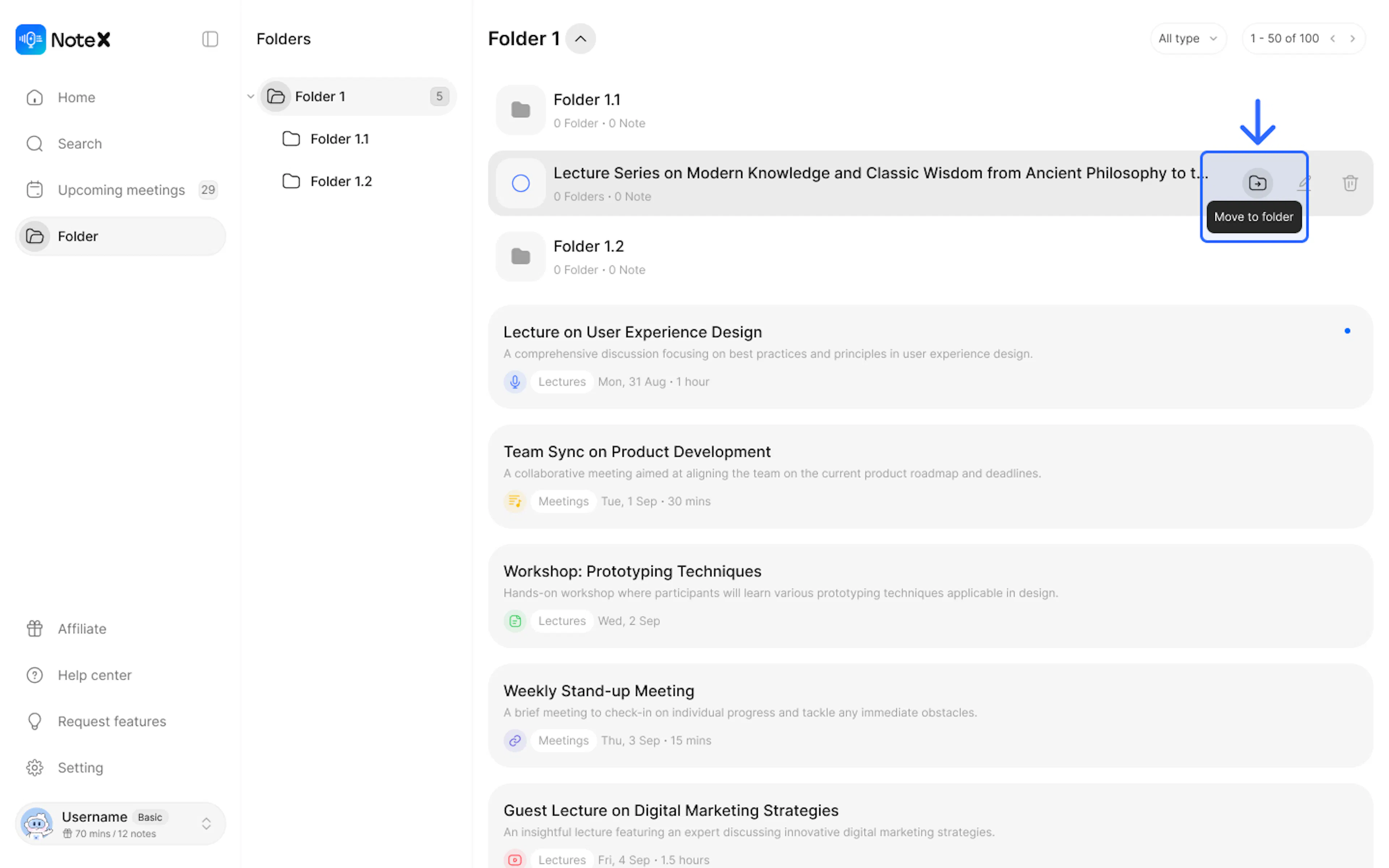
- Move notes: Hover over the note you wish to move, then click "Move to folder" to place it into your desired folder.
Contact Support
If you need any further assistance, please do not hesitate to contact us via:
- Product support & bug reports: support@notexapp.com
- Partnerships & general inquiries: hello@notexapp.com
Was this page helpful?