

Live Transcribe & Translate
The Live Transcribe & Translate feature helps you convert audio into text and translate it in real-time.
1. Use Cases:
-
Meetings with Foreign Partners: Understand the content instantly without the need for an interpreter.
-
Lecture/Seminar Note-taking: Save all important content without worrying about missing information.
-
Interviews & Research: Automate audio transcription, saving hours of manual work.
2. Step-by-Step Guide
Step 1: Initialization
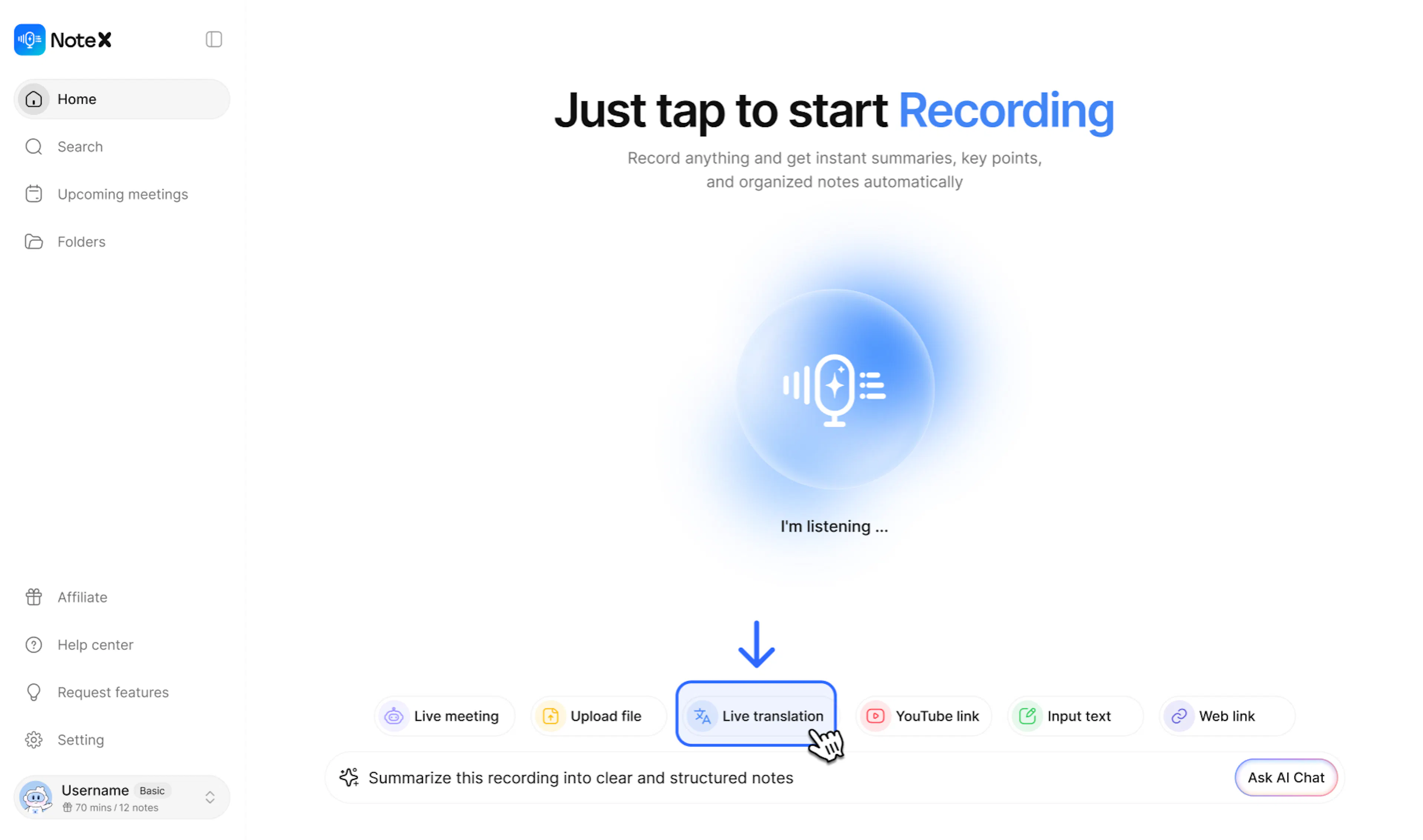
On the main interface (Home) of NoteX, click the Live translation button (at the bottom of the screen) to open the recording control panel.
Step 2: Select Translation Mode
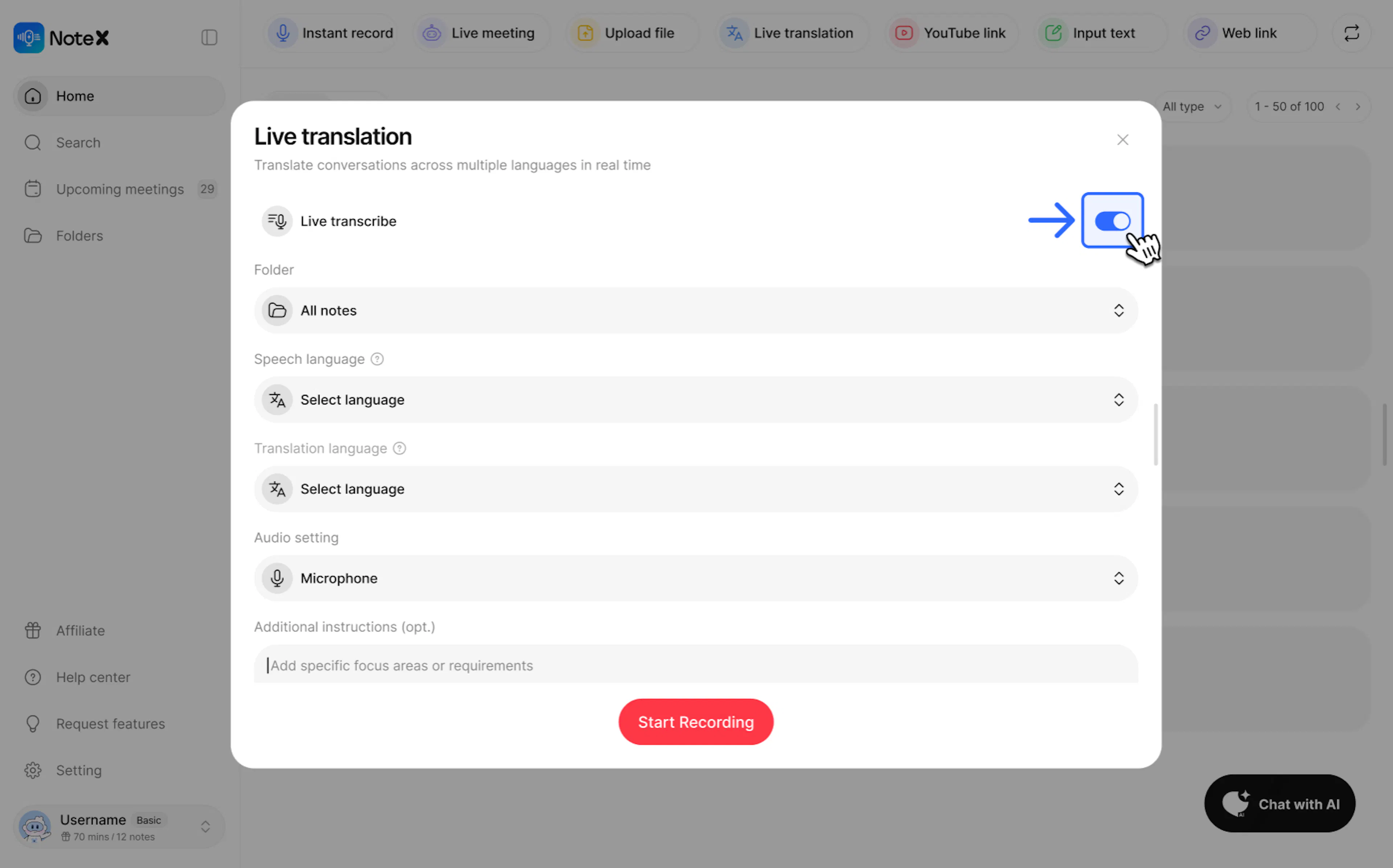
In the Live translation window, you need to check the following options:
- Live transcribe: Toggle the switch to the right to enable the real-time running text feature.
-
Folder: Select the folder to store the recording.
-
Speech Languages: Select the source language that you are speaking/hearing.
-
Translation language: Select the language you want to translate into (e.g., English or Vietnamese).
-
Audio Setting: Ensure your Microphone is connected and receiving signal.
-
Additional instructions (opt.): Add specific focus or requests to help the AI understand the context better (can be added or skipped).
Step 3: Start and Monitor
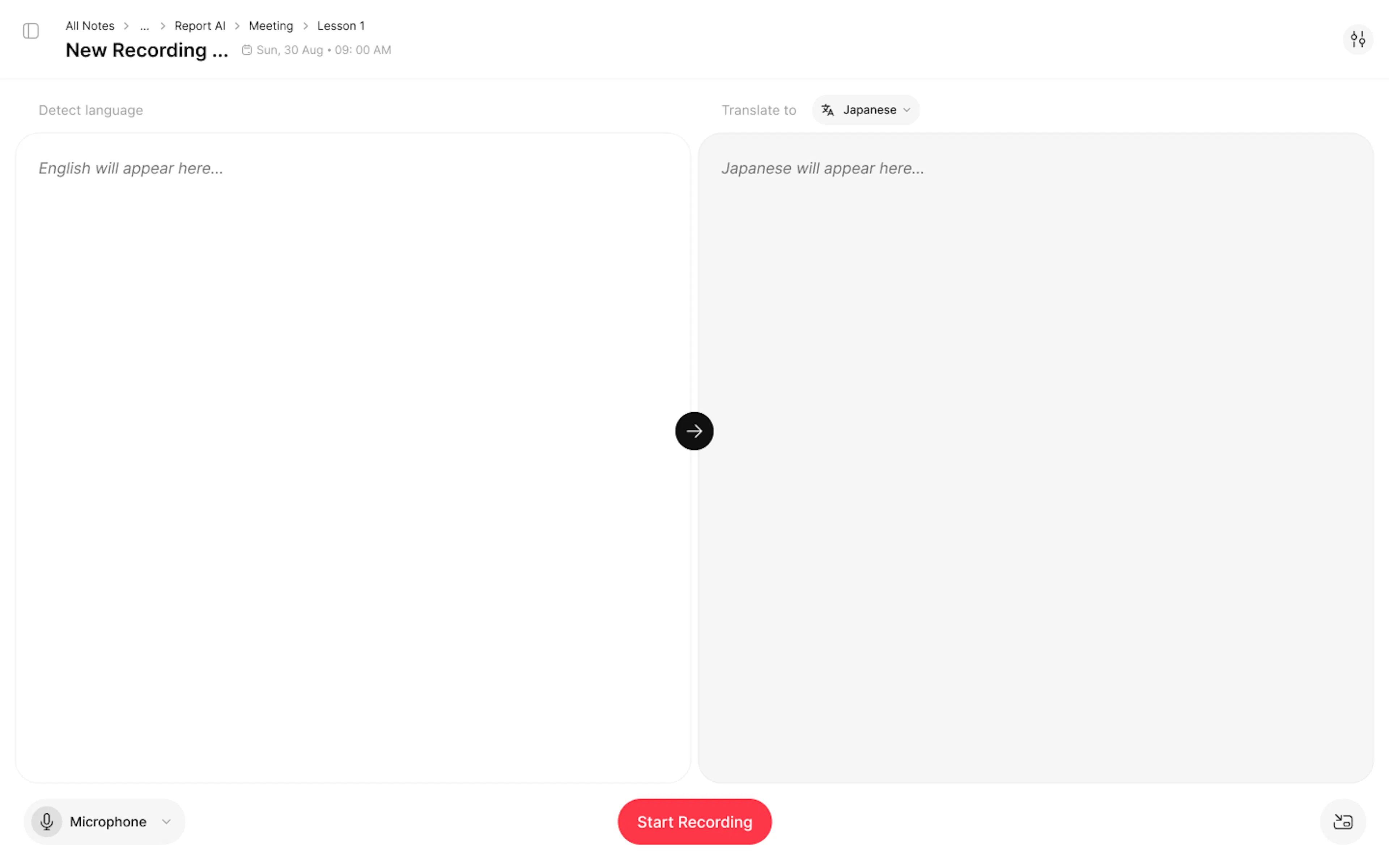
Click Start Record. The screen will be split into 2 parts:
-
Left side: Displays the original text transcribed from the speech.
-
Right side: Displays the live translation into your selected language.
Step 4: Completion
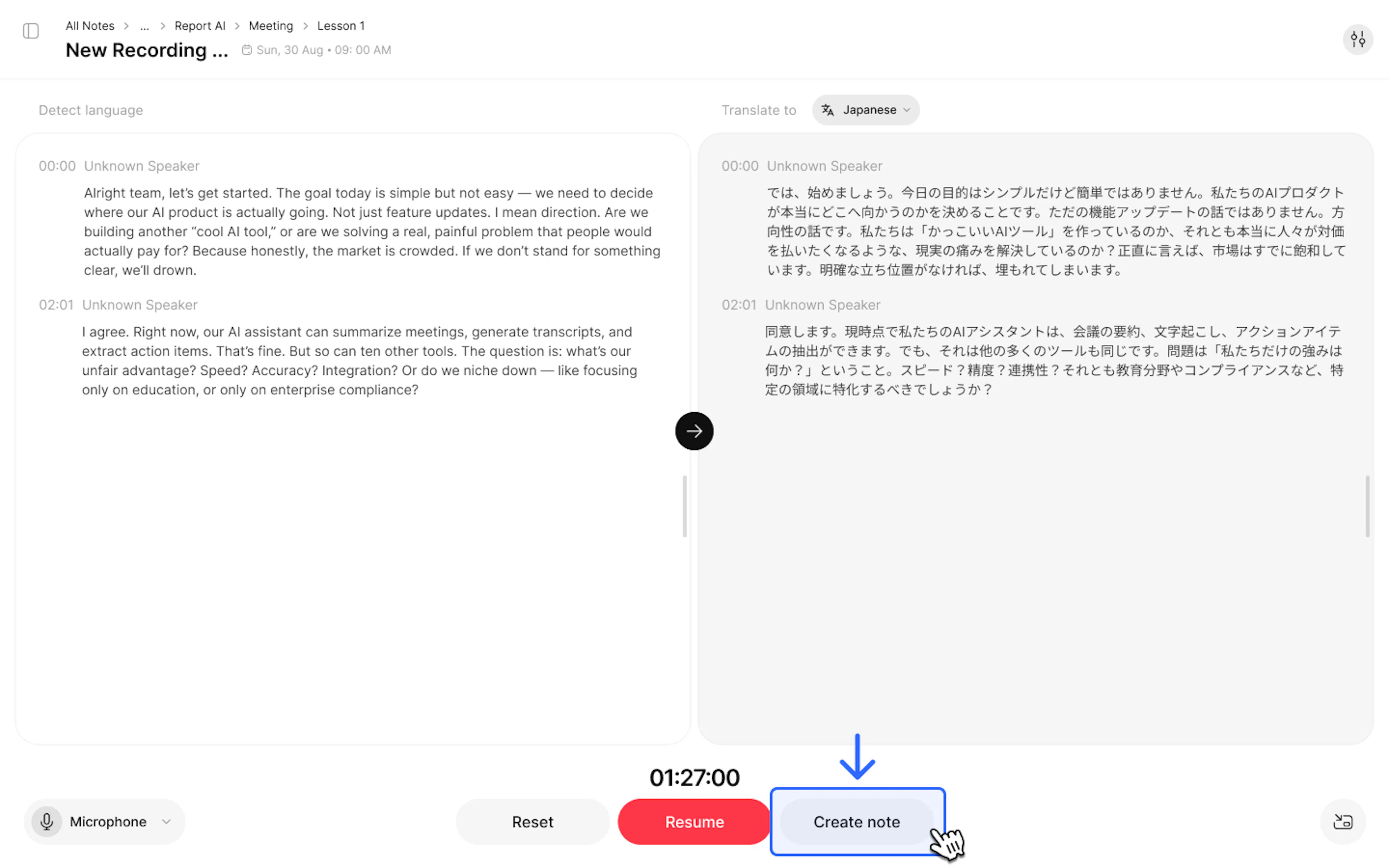
During the recording process, you can click Pause or Reset to start over. Once finished, click Create Note to save the entire content to your NoteX account.
3. Frequently Asked Questions (FAQ)
Q: Can I choose multiple translation languages at the same time?
- Currently, the system supports selecting up to 05 translation languages per recording session to ensure the highest accuracy.
Q: What if the microphone disconnects midway?
- You can check the Audio Setting section at the bottom left corner of the recording screen to reselect the input device without closing the session.
Q: What factors does the translation quality depend on?
- Accuracy depends on network speed, source volume, and the clarity of the speaker's words. You should use a good quality microphone for optimal results.
4. Contact Support
If you need any further assistance, please do not hesitate to contact us via:
-
Product support & bug reports: support@notexapp.com
-
Partnerships & general inquiries: hello@notexapp.com
-
Support Community:Discord Community